Improved Task Book Experience
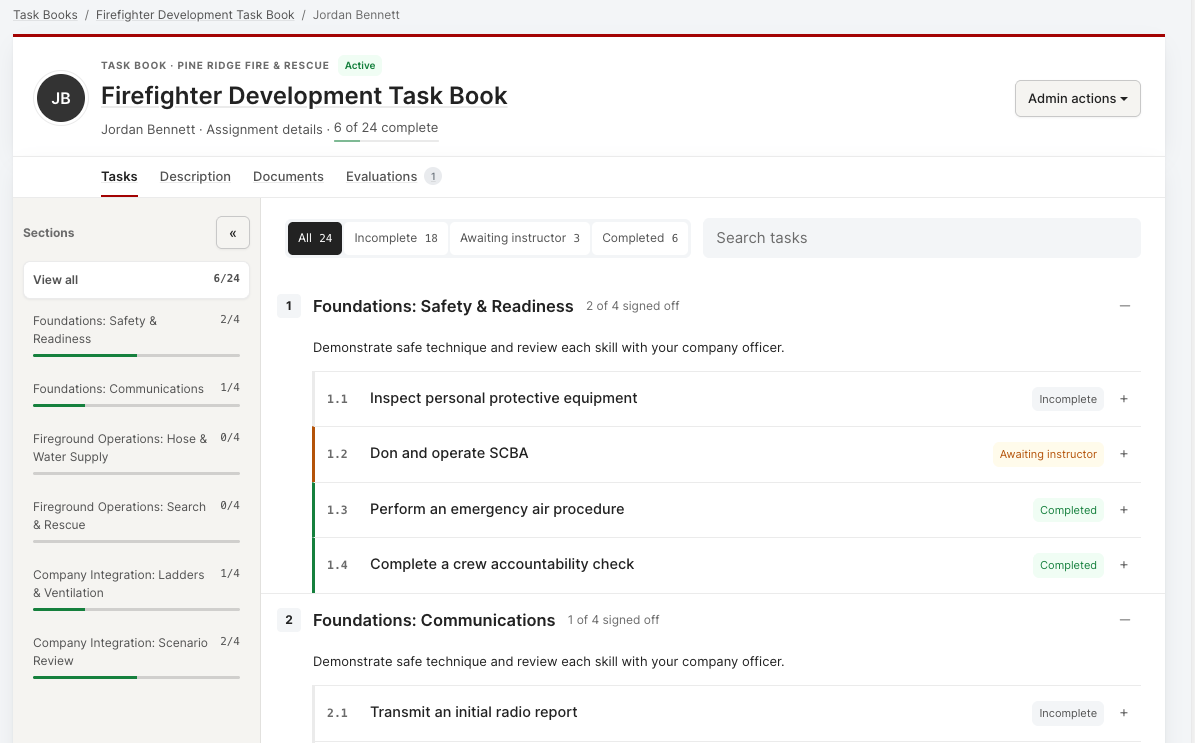
We’ve redesigned Task Books, so trainees, instructors, and administrators can find their work and sign it off with fewer clicks. The rules behind sign-offs, permissions, and phases are unchanged—this update reorganizes the screens around the work each person needs to do.
New: Signoff matrix for bulk sign-off
From a template’s assignments area, open the Signoff matrix to review many assigned people at once. Choose a section and its tasks become columns, with assigned people as rows.
Status cells distinguish Not started, Awaiting instructor, Awaiting trainee, Complete, and unavailable work. Filter the matrix by organization group.
Select one or more people in a task column, choose Sign off, confirm the completion date, and submit. When available, Roster completion as an event continues to the training-event form with the selected completions attached.
Safeguards are built in: a bulk action can’t overwrite an existing instructor sign-off or include someone you aren’t permitted to sign for. If another instructor signed a task first, the matrix asks you to refresh instead of replacing their sign-off.
Assigned task books
Sections rail. Every section is listed with its number, task count, and a progress bar. Click a section to jump straight to it, or collapse the rail to give tasks the full width.

Filter by status. Switch between All, Incomplete, Awaiting instructor, and Completed, with live counts on each.

Search tasks. Type to find a task by name instead of scrolling through every category.

Inline custom fields. Custom fields be added with their task. Completed tasks lock their values, and empty optional fields stay blank.
Admin actions menu. Authorized users can open Edit Task Book, Assignment Settings, and View PDF from the task book header.
Built for mobile. Sections and status filters open as sheets on small screens, and every tab and action remains reachable.
Template builder

Select a task row to edit it inline. Task-specific custom fields are created and managed inside that task’s edit panel.
The task form now places Description directly below Name and Task number, followed by codes, linked courses, and custom fields.
The evaluation template footer controls which standard comment boxes appear—Action Plan, Narrative, and Recommendations—instead of adding them to every rating automatically.
Syncing a template to assigned task books updates labels and configuration while preserving completion dates, signer information, and values already entered.
Existing permissions, sign-off policies, phase restrictions, and edit windows all carry over as they were.